

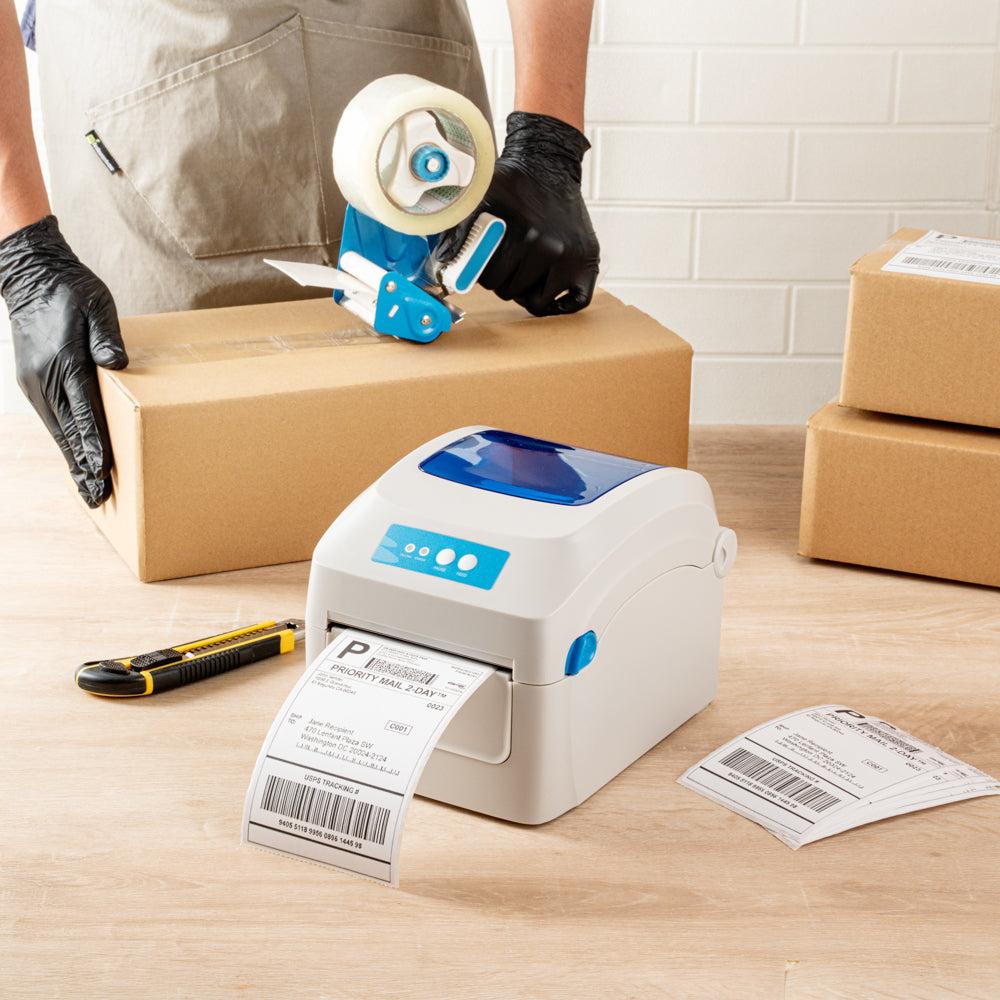
To print an eBay shipping label with a thermal printer, purchase the label from the order, select a 4 × 6 print format, choose the matching thermal printer stock, and print at 100% scale. eBay currently offers several print formats for supported services, so the format must be selected before or during label creation rather than corrected by shrinking a larger page afterward.
The reliable workflow has four controls: correct shipment data, a true 4 × 6 source file, an exact 4 × 6 driver setting, and a verified scan. If any control is wrong, the label can look acceptable in the preview but print too small, sideways, or with a clipped tracking barcode.
How Do You Create the Label in eBay?
Open the sold order in My eBay or Seller Hub and choose the shipping-label action. Check the destination, package weight, dimensions, mailing date, service, and any options such as signature or additional coverage. Purchase only after these details match the packed parcel.
Select a printable label and choose the 4 × 6 print format when offered. eBay may also offer Letter-size, another carrier-specific size, or a QR-code workflow. Choose the output that matches the printer; do not use a thermal printer merely because the word “label” appears on the page.
What Media Should the Printer Use?
Load white direct thermal shipping labels that are compatible with the printer’s width, gap or mark sensor, feed path, roll holder, and maximum media size. Four-inch printers commonly use 4 × 6 media, but the exact construction still matters.
Use thermal labels with a smooth imaging surface and an adhesive tested on the actual mailer or carton. Recycled corrugated board, dusty boxes, coated packaging, and low-surface-energy plastic can require higher initial tack than clean standard cartons.
How Should the Driver Be Configured?
Create or choose a stock definition that is exactly 4 inches wide and 6 inches long. Load the media squarely, close the guides, and calibrate the gap or black-mark sensor. Confirm direct thermal mode on printers that also support ribbons.
Set a moderate print speed and the media supplier’s recommended darkness. Excessive speed can leave pale or broken bars, while excessive darkness can thicken bars and narrow the white spaces. Save the approved configuration under a clear name such as “eBay 4×6 DT.”
Which Print Settings Should You Select?
Open the downloaded PDF in a dependable viewer, select the thermal printer, and use Actual Size or 100%. Turn off Fit, Shrink, multiple pages per sheet, headers, footers, and borderless expansion. Confirm that the print preview shows one complete label on one page.
If the preview shows a small label on a larger page, return to eBay and change the print format. If the image is rotated, set orientation manually. Avoid screenshot printing because image capture and resizing can soften the barcode edges.
Why Does eBay Print Two Labels on One 4 × 6 Page?
This usually happens when a batch or account setting reverts to a sheet layout, or when the PDF viewer places multiple source pages on one physical page. Check the eBay print format and make sure “pages per sheet” is set to one.
Print a single order before testing a large batch. If individual labels are correct but bulk labels are not, compare the source page dimensions and batch-print settings. Do not enlarge the two-up page, because each barcode may be cropped or distorted.
Why Is the Label Too Small or Sideways?
A Letter-size source fitted onto a 4 × 6 page produces a small label. An orientation conflict can turn it sideways. Confirm the source PDF page size first, then confirm the driver stock, scale, and orientation. These four settings should describe the same physical rectangle.
Operating-system or driver updates may reset defaults. Keep a known-good eBay PDF and print it when troubleshooting. If that file is also wrong, the printer path is the problem; if it prints correctly, inspect the new eBay format.
How Do You Verify the First Print?
Check that the address, carrier information, tracking number, and full barcode are present. Look for vertical white lines, gray bars, heavy background marks, wrinkles, or clipped quiet zones. Scan the tracking barcode and compare the result with the order.
Apply the sample to the filled package and scan again. Flexible mailers can distort labels after handling, and rough cartons can create bubbles. A successful scan while the label is still on the liner does not prove the applied package will scan.
Where Should the Label Be Applied?
Place it on the largest flat surface, away from seams, corners, closure tape, and package edges. Remove or fully cover old carrier labels and tracking barcodes. On reused boxes, also cover unrelated hazardous-material or routing markings when required by the carrier.
Press the label from the center outward. Do not fold the barcode over an edge or bridge it across a mailer seam. Avoid taping over the thermal image unless the materials and carrier process have been tested for glare and image stability.
How Do You Control Bulk Printing?
- Pack and arrange orders in a fixed sequence.
- Verify shipment details before purchasing the batch.
- Print and scan the first two labels.
- Match each label to the order and parcel immediately.
- Void damaged copies and record every reprint.
Use the order number or another unique identifier, not only the buyer’s name. If the print job stops, determine the last correctly applied label before resuming. Never place an unverified stack of loose labels beside unsorted packages.
What Should Be Standardized for Repeat Orders?
Record the eBay format, PDF viewer, printer, driver stock, scale, orientation, speed, darkness, and label construction. Recheck them after software updates or carrier changes. Maintain separate presets if you also print narrow USPS labels or office-paper formats.
Give your label supplier the printer model, label size, sensing method, roll direction, core, outside diameter, package surfaces, and storage conditions. The simplest dependable process is to generate a true 4 × 6 file, preserve its size, verify the scan, and apply it flat to the correct parcel.
