

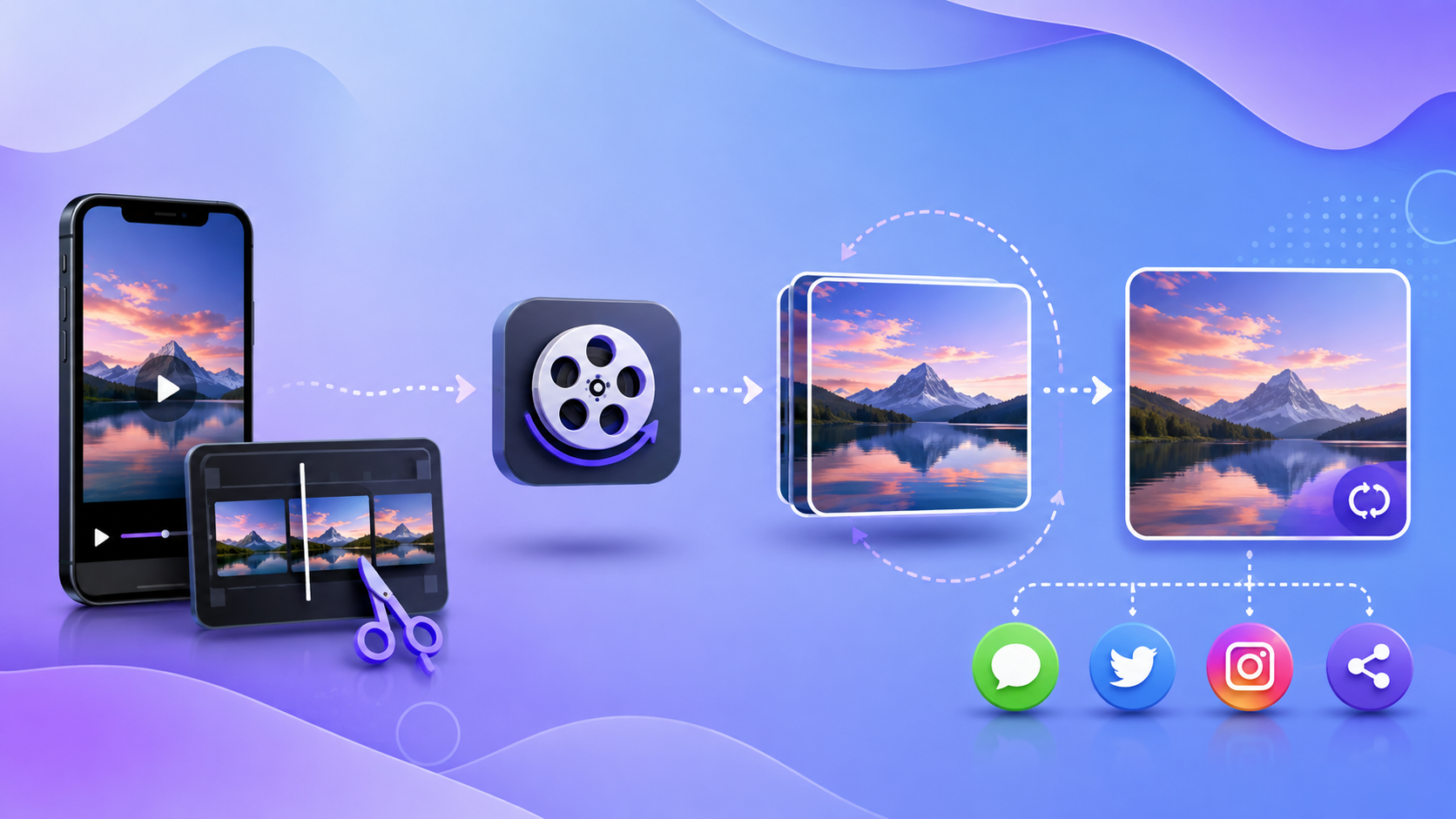
Short videos capture reactions, demonstrations, funny moments, and useful visual instructions, but sharing a full video is not always practical. An animated image can make the same moment easier to post in chats, articles, forums, presentations, and social feeds because it plays automatically and needs no separate video player. With a GIF converter, you can select the most useful part of a clip, adjust its size and timing, and export it as an animation that is easy to share. The key is not simply converting the file. Good results depend on choosing the right moment, trimming unnecessary frames, and balancing visual quality with file size.
What Is an Animated GIF and Why Is It Still Useful?
A GIF, short for Graphics Interchange Format, is an image format that can store multiple frames in one file. When those frames appear in sequence, they create animation. Unlike a standard video, an animated GIF normally loops automatically and does not contain an audio track.
This simplicity explains why GIFs remain useful even when modern video formats can provide much better compression. A short animation can show a reaction, explain where to click, demonstrate a small design change, or repeat a memorable moment without asking the viewer to press play. It can also fit naturally into written content where a video player would feel excessive.
GIFs do have technical limits. The format uses a palette of up to 256 colors for each image frame, so footage with gradients, shadows, or many subtle colors may lose detail. The GIF format overview from MDN provides more background on the format and its common uses.
Key takeaway: An animated GIF works best for a short, silent visual moment that benefits from automatic playback and repetition.
How Do You Turn a Short Video Into an Animated Image?
The basic conversion process is simple. You provide a video, choose the part you want, configure the animation, and export it. However, a few decisions during those steps can dramatically change the final result.
Start with a short source clip whenever possible. If your original video lasts several minutes, identify the exact moment that communicates the idea. A reaction might need only two or three seconds. A software demonstration may need five to eight seconds. Removing everything else before conversion reduces processing time and gives you a smaller final file.
A typical workflow looks like this:
- Choose the source video. Use the clearest version available rather than repeatedly converting an already compressed copy.
- Set the start and end points. Keep only the frames needed to communicate the moment.
- Crop the frame if necessary. Remove empty space, interface elements, or background areas that add little value.
- Resize the animation. Large dimensions increase file size quickly.
- Choose a frame rate. Lower frame rates usually produce smaller files, while higher rates make movement smoother.
- Preview the loop. Check whether the ending flows naturally back into the beginning.
- Export and test the file. Open it on both desktop and mobile devices before publishing.
A GIF converter may automate much of this process, but manual choices still matter. A poorly selected ten-second clip will usually be less effective than a carefully edited four-second animation.
Key takeaway: Trim first, crop unnecessary areas, choose sensible dimensions, and preview the loop before exporting.
How Long Should a Shareable Animation Be?
There is no universal maximum length, but shorter is usually better. Animated images become large because every additional second requires more frames. A ten-second GIF at 15 frames per second can contain about 150 frames, while a three-second version contains only about 45.
For reactions, memes, and visual highlights, two to five seconds often gives viewers enough time to understand what happened. Tutorials and interface demonstrations may need slightly longer sequences. In those cases, focus on a single action rather than trying to reproduce an entire lesson as one animation.
Think about the viewer’s attention as well as the technical limits. A looping animation should communicate its purpose quickly. If a reader has to watch the sequence three times to understand what is happening, consider slowing down an important moment, adding a short text label, or selecting a clearer section of the source video.
Key takeaway: Use the shortest clip that communicates the complete idea. Fewer seconds usually mean a faster, cleaner, and more shareable animation.
How Can You Reduce GIF File Size Without Ruining Quality?
File size is one of the biggest challenges when converting video to GIF. Standard video codecs use sophisticated compression methods that GIF does not. As a result, a few seconds of GIF animation can sometimes be larger than the original video clip.
Resolution is a good place to start. A 1920 × 1080 animation is unnecessary for many chats, blog posts, and forum replies. Reducing the width can remove a significant amount of image data while keeping the content easy to see. Crop the source before resizing if only part of the frame matters.
Frame rate is another useful control. Video may be recorded at 30 or 60 frames per second, but a simple GIF rarely needs to preserve every frame. Depending on the type of movement, roughly 10 to 15 frames per second may still look acceptable. Fast sports footage or detailed motion may require more, so always judge the preview rather than relying on one fixed setting.
Color reduction can also help. Because GIF already uses limited color palettes, reducing unnecessary color information may lower file size. However, aggressive settings can create visible bands in skies, shadows, and gradients.
Key takeaway: Reduce dimensions, duration, frame rate, and unnecessary colors gradually. Preview after each major change so compression does not destroy the important visual details.
Should You Always Use GIF for Animated Images?
No. GIF is widely recognized, but it is not always the most efficient option. Modern formats can offer better compression and image quality for certain uses.
Animated WebP, for example, supports animation while providing more advanced compression. Google notes in its WebP documentation that the format supports both lossy and lossless compression as well as animation. That can make WebP attractive for websites where page weight and loading speed matter.
The right choice depends on where the animation will appear. If a website, messaging service, or publishing system specifically expects GIF files, GIF remains a practical option. If you control the website and need to optimize performance, compare GIF with animated WebP or even a short muted video.
This distinction matters for publishers such as Arvo Magazine and other content-focused sites. Visual elements should support the article without making pages unnecessarily slow. An animation is useful only when it improves the reader’s experience.
Key takeaway: Choose GIF for convenience and broad sharing, but consider newer formats when website performance and compression are higher priorities.
What Makes an Animated Image More Shareable?
Technical optimization is only half the job. The animation itself must communicate something worth sharing.
Start with a clear focal point. If viewers cannot immediately tell where to look, crop the frame more tightly. For a software demonstration, keep the cursor and relevant button visible. For a reaction, focus on the person rather than the entire scene. For a product movement or physical demonstration, remove distracting background space.
Loops also deserve attention. Some clips naturally return to their opening position, producing an almost seamless repeat. Others end abruptly. You can sometimes improve an awkward loop by changing the start or end frame. For demonstrations, a short pause on the final state can also help viewers understand the result before the sequence repeats.
Use text sparingly. A small caption can add context when an animation has no sound, but too much text makes the image difficult to follow, particularly on mobile screens. If the animation accompanies an article, let the surrounding copy provide detailed explanations.
Finally, consider accessibility. Important information should not exist only inside a moving image. Add descriptive surrounding text or appropriate alternative text where the publishing system allows it. Avoid rapid flashing content, which can create accessibility concerns.
Key takeaway: Shareable animations have a clear subject, an understandable loop, minimal text, and enough surrounding context for readers who cannot rely on the animation alone.
What Common Video-to-GIF Mistakes Should You Avoid?
One common mistake is converting an entire clip without editing it first. Long animations consume more storage, take longer to load, and force viewers to wait for the useful moment. Trim aggressively.
Another mistake is preserving the video’s original resolution by default. High-resolution video is designed for large displays, while many animated images appear inside narrow content columns, messaging windows, or mobile screens. Exporting at the actual size you need is usually more efficient.
Avoid adding too many effects as well. Stickers, transitions, filters, and large captions may look appealing in an editor, but each addition can distract from the central action. The best animation often contains only what the viewer needs to understand the moment.
Finally, check whether you have permission to reuse the source footage. Converting a copyrighted video into another file format does not automatically grant permission to publish it. Use footage you created, material you are authorized to use, or content provided under terms that allow your intended use.
Key takeaway: Do not convert first and edit later. Start with a clean, permitted source and remove unnecessary duration, resolution, and visual clutter before export.
A Practical Checklist Before You Share
A quick quality check can prevent most problems. Before uploading an animated image, ask whether the first frame makes sense, whether the main action is easy to see, and whether every second contributes something useful.
Check the following:
- Keep the animation focused on one idea or action.
- Trim unnecessary frames at the beginning and end.
- Crop unused areas of the picture.
- Resize the image for its actual publishing context.
- Lower the frame rate if movement remains clear.
- Preview the transition between the last and first frames.
- Confirm that text remains readable on a phone.
- Check the final file size before uploading.
- Test the animation in its intended platform or browser.
- Provide useful context for accessibility.
- Confirm that you have the right to publish the source material.
These checks take little time but can make the difference between a heavy, confusing animation and one that people can understand immediately.
Key takeaway: A successful animated image should be short, focused, readable, appropriately sized, accessible, and tested on its intended platform.
Frequently Asked Questions
Can I turn any video into a GIF?
Most common video formats can be converted, provided the conversion tool supports the source file. However, you should only publish footage that you own or have permission to use.
Takeaway: Technical compatibility does not replace the need for appropriate usage rights.
Why does my GIF look worse than the original video?
GIF has significant color and compression limitations compared with modern video formats. Reducing resolution, frame rate, or colors can create further quality loss.
Takeaway: Some quality loss is normal, so optimize gradually and preview the result.
Why is my GIF file so large?
Long duration, large dimensions, high frame rates, and complex visual details all increase file size. Trim the clip and reduce dimensions before applying more aggressive compression.
Takeaway: Duration and image dimensions are two of the first settings to reduce when a GIF becomes too large.
What frame rate should I use for a GIF?
There is no single ideal setting. Around 10 to 15 frames per second can work for many simple animations, while fast or detailed movement may need a higher rate. Test several settings and choose the lowest rate that still looks clear.
Takeaway: Use enough frames to communicate smooth motion, but avoid keeping frames the viewer does not need.
Is GIF better than animated WebP?
It depends on the destination. GIF remains convenient for many sharing situations, while animated WebP can provide more efficient compression for modern web use. Platform support and publishing requirements should guide the choice.
Takeaway: Use the format that offers the best balance of compatibility, quality, and file size for your destination.
How Can You Get Better Results From Every Conversion?
Turning a short video into a shareable animated image is less about pressing a conversion button and more about editing with purpose. Select one useful moment, remove everything that does not support it, resize the frame, and choose a frame rate that keeps movement clear without creating an unnecessarily large file.
Before publishing, preview the animation in the environment where people will actually see it. A GIF that looks good on a desktop editing screen may feel too large, too fast, or difficult to read on a phone. When GIF becomes inefficient, compare it with newer animation formats or short muted video.
The strongest animated images communicate one idea quickly. Careful trimming, sensible compression, clear framing, and a clean loop can turn a few seconds of ordinary video into a visual that readers can understand and share almost instantly.
Key takeaway: Start with a strong moment, keep only the frames that matter, optimize for the destination, and test before publishing. That combination produces animated images that are easier for both readers and web pages to handle.
